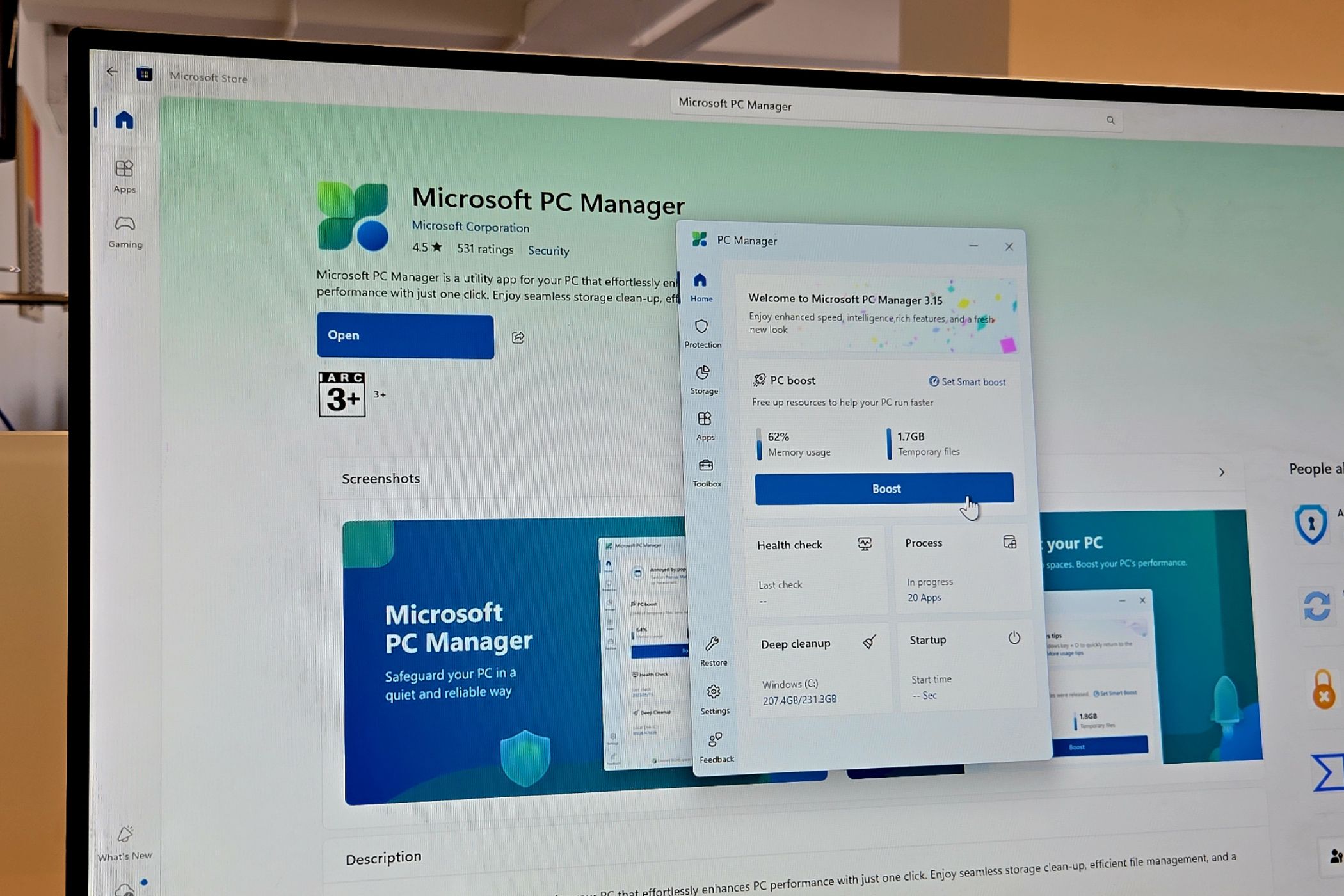
Finding and removing duplicate files on your Windows PC can be tedious. Fortunately, Microsoft’s PC Manager app offers a simple solution.
Download: PC Manager (Free)
How to Use PC Manager to Find and Delete Duplicate Files
Although several third-party apps and tools can help you find duplicate files on your Windows 10 or 11 PC, PC Manager is your best option for a couple of reasons. For one, it’s completely free and developed by Microsoft itself. Secondly, it offers several other useful tools for maintaining your PC’s health and boosting performance.
To get started, you first need to download the PC Manager app from the Microsoft Store if you don’t have it already. Once installed, follow these steps to find and delete duplicate files:
- Open the PC Manager app on your Windows computer.
- Go to the Storage tab on the left and click Duplicate files. This will open the Duplicate files window.
- Wait for the PC Manager app to scan your system for duplicate files, and it will list all duplicate files, along with the total storage space they occupy at the top.
- Use the filters at the top if you only want to find specific types of duplicate files, such as pictures, videos, or documents. You can also click the Size header to sort files by their size.
- Use the checkboxes to select the duplicate versions of files you want to delete. If you want to select all the files, click the Smart select option at the top.
- Click the Permanently delete button in the bottom-right corner.
- Click Permanently delete again to confirm.
PC Manager will now remove the selected duplicate files. Since these files are permanently deleted, there’s no need to empty the Recycle Bin afterward. You can then make the most of your newly freed storage space.
No matter how careful you are, your PC will likely accumulate duplicate files over time. Fortunately, PC Manager makes it easy to remove these unnecessary files and free up valuable storage space on Windows with just a few clicks.