If your Windows laptop’s Wi-Fi and Bluetooth disappear after waking up from sleep but return after a restart, it’s likely due to a driver problem or incorrect power management settings. Thankfully, there are a few easy ways to fix this.
1
Disable Link State Power Management in Settings
Link State Power Management (LSPM) is a power-saving feature that reduces power consumption when PCIe devices, such as network adapters, are not in use. However, this setting can also cause the network devices to disappear when resuming from sleep, as Windows might fail to wake them properly.
To fix this, you can safely disable LSPM in your Power Plan Settings with minimal impact on your power consumption. Here’s how:
- Click Start, type Control Panel, and open it from the search results.
-
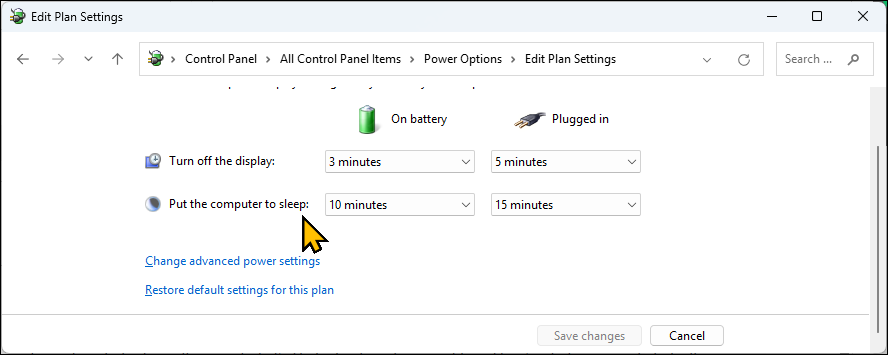
In the Control Panel, go to Power Options and click Change plan settings for your active plan.
-
Next, click Change advanced power settings to open the Power Options dialog.
-
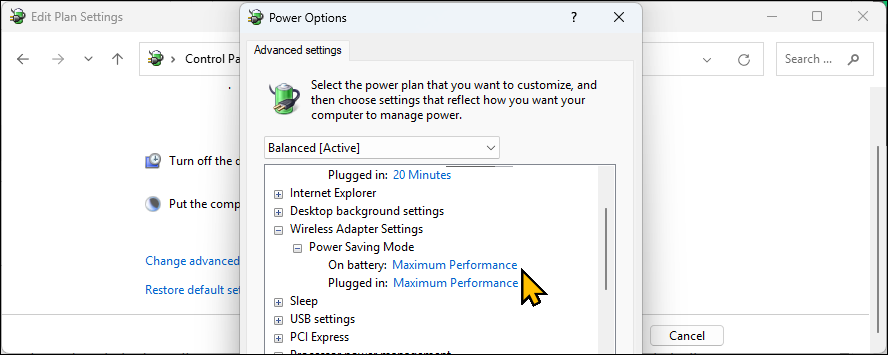
Expand Wireless Adapter Settings > Power Saving Mode. Then, set both On battery and Plug in to Maximum Performance.
-
Next, Expand PCI Express > Link State Power Management and set it to Off.
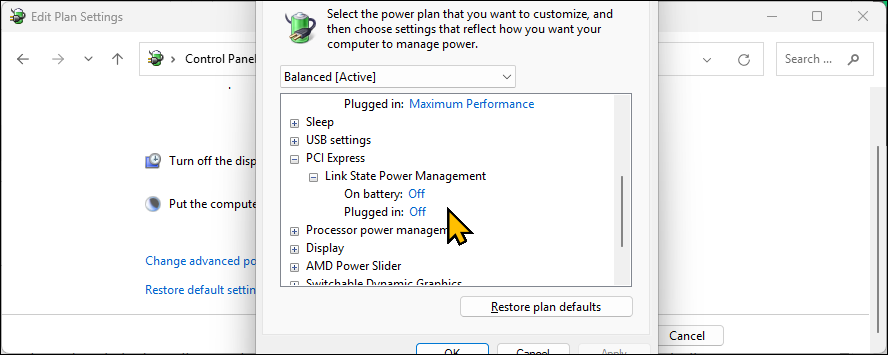
- Click Apply and OK, then restart your computer.


After the restart, your Wi-Fi and Bluetooth adapters should remain available even after your laptop wakes from sleep. I’ve tested and confirmed this solution works on an HP Pavilion gaming laptop.
2
Uninstall the Latest Bluetooth and Wi-Fi Drivers
If your Wi-Fi and Bluetooth still disappear after sleep, the issue may be caused by a buggy driver update. Rolling back to an older and more stable driver version can help fix the problem. To roll back your Bluetooth driver, follow these steps:
- Click Start, type Device Manager, and open it.
- Expand the Bluetooth section.
-
Right-click your Bluetooth device (e.g., Intel(R) Wireless Bluetooth(R), or Realtek Bluetooth) and select Uninstall device.
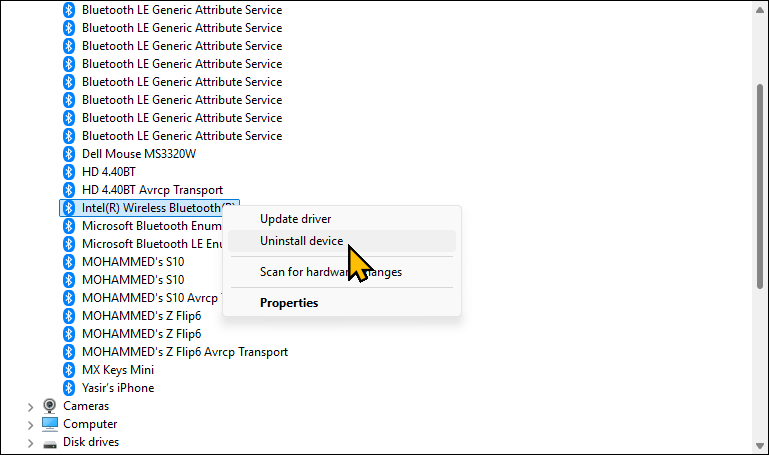
- In the confirmation dialog, check Attempt to remove the driver for this device, then click Uninstall.

To uninstall the Wi-Fi driver, follow these steps:
- In Device Manager, expand the Network adapters section.
-
Right-click your Wi-Fi adapter and select Uninstall device.
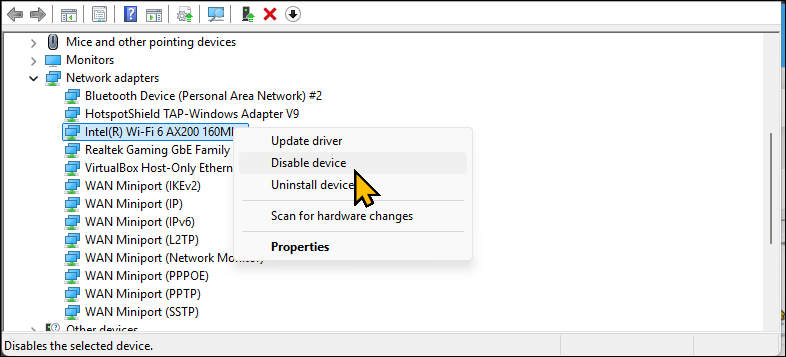
- Check Attempt to remove the driver for this device, then click Uninstall. Once both the drivers are uninstalled, you can reinstall the older version of the drivers.

Reinstall the Older Version of the Drivers
Assuming the latest drivers were buggy or didn’t work with your network adapters, installing an older version of the driver can help. You can download previous drivers from the manufacturer’s website.
For example, if your laptop uses Intel Bluetooth and Wi-Fi adapters, visit Intel’s Download Center, select the Wireless category, and download an earlier version of the driver. Then, run the MSI installer or setup file and follow the on-screen instructions.
3
Perform a System Reset
If the problem is due to corruption or missing system files, a factory reset can help. Windows 10 and 11 let you reset your PC without losing your data, but your apps and other settings will be removed.
Now, before you reset, create a backup of your Windows computer. You can also export a list of apps installed on your computer to a text file using the Windows Package Manager. To export a list of your installed apps, do this:
- Click search, type cmd, and open Command Prompt.
-
Then type the following command and hit enter to save the list to C:apps.txt:
winget list >c:apps.txt
To reset your PC:
-
Go to Settings > System > Recovery > Reset this PC.
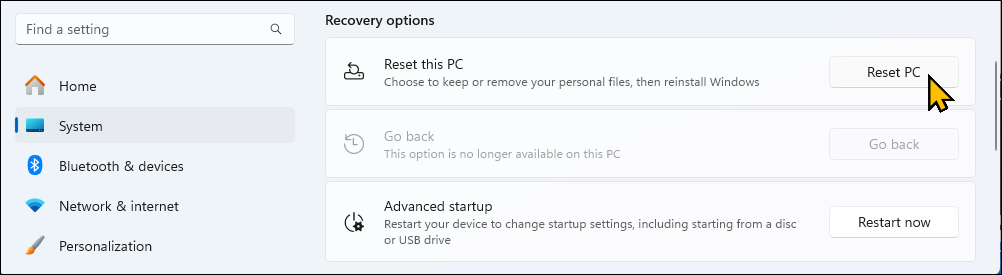
-
Choose Keep my files.

- Then choose Cloud download or Local reinstall.
- Click Next, then Finish to start the reset process.


Windows will download the latest version of the operating system from the cloud (if you used Cloud install) and reset your computer. After the reset, install the latest drivers and check if the issue is resolved.
4
Keep Your PC Awake
As a quick workaround, you can prevent your PC from going to sleep to avoid losing Wi-Fi and Bluetooth connectivity. You can use PowerToy’s Awake to keep your PC awake indefinitely while allowing you to manually put it to sleep when needed.
Start by downloading PowerToys from Microsoft Store. Launch the app, expand Advanced Tools > Awake > Enable awake. Then, under Behaviour, set the Mode to Keep awake indefinitely.

5
Check for Hardware Issues
Identifying hardware issues can be tricky, especially if the Wi-Fi and Bluetooth devices work after a restart. Before taking your laptop to a service center, try these steps to identify hardware issues.
One easy way to check for hardware-related issues is by testing your Wi-Fi and Bluetooth on a different operating system. This is why I always keep a Linux Live USB handy, as I can use the Try Ubuntu option to test the operating system without installing it first.
To do this, create a bootable Bootable USB with the Ubuntu Linux distro, boot into Ubuntu Live, and then use the Try Ubuntu option. Check if the Wi-Fi and Bluetooth are working in the live mode. If they do, it’s not your hardware but software that’s causing the problem.
Do a Wiggle Test
A wiggle test helps determine if a hardware issue is caused by a loose connection. To perform the test, put your laptop into sleep mode, then gently press around the bottom case, especially near the Wi-Fi adapter. Finally, wake the laptop and check if the Wi-Fi connects. If it does, it could be a loose internal connection and an easy fix if you’re comfortable opening your laptop up.
If the issue persists despite these fixes, contact your computer manufacturer for support. If your device is still under warranty, you may be eligible for a repair or replacement.